Files and Directories
Module 4: IDEs & Tools
Directories
A directory (or folder) is like a drawer in a filing cabinet: it contains files and other directories (subdirectories). This creates a hierarchy that starts at a root directory:
Home
├── Documents
├── IE
│   └── ComputerProgramming
│       ├── hello.py
│       └── data.csv
└── Downloads
Python needs to know where a file is, so it is important to understand how your operating system organises directories.

- The main drive is usually
C:\. Each drive has its own letter. - Paths use a backslash
\, for exampleC:\Users\maria\Documents. - Common folders:
C:\Program Files\(applications),C:\Users\(one personal folder per user),C:\Windows\(system files). - File Explorer is the program to browse files. Use the navigation panel on the left and the address bar at the top, where you can type a path.
- There is a single root directory
/. - Paths use a forward slash
/, for example/Users/maria/Documents. - Common folders:
/Applications(applications),/Users(home folders),/Systemand/Library(system files), and~/Library(your personal library inside your home folder). - Finder is the program to browse files. Use the sidebar, the Go menu or Spotlight.
- There is a single root directory
/, as in macOS. - Paths use a forward slash
/, for example/home/maria/Documents. - Common folders:
/home(home folders),/usr(programs),/etc(configuration). - Use your file manager, or the terminal.
Python understands forward slashes / on every operating system, including Windows. If you need a backslash in a Windows path, write it twice ("C:\\Users\\maria") or use a raw string (r"C:\Users\maria"). A single \ is an escape character in Python strings.
Common operations
| Action | Windows | macOS |
|---|---|---|
| New folder | Right-click > New > Folder | Cmd + Shift + N, or right-click > New Folder |
| Rename | Click the name, or right-click > Rename | Click the name, or right-click > Rename |
| Copy and paste | Ctrl + C, Ctrl + V |
Cmd + C, Cmd + V |
| Move | Drag and drop | Drag and drop |
| Delete | Delete key (sends to Recycle Bin) |
Cmd + Delete (sends to Trash) |
Moving around in the terminal
You can do the same from the terminal. These commands exist in the VS Code terminal:
| What it does | Windows (PowerShell) | macOS / Linux |
|---|---|---|
| Show the current folder | pwd |
pwd |
| List the files | ls (or dir) |
ls |
| Go into a folder | cd folder_name |
cd folder_name |
| Go to the parent folder | cd .. |
cd .. |
The working directory
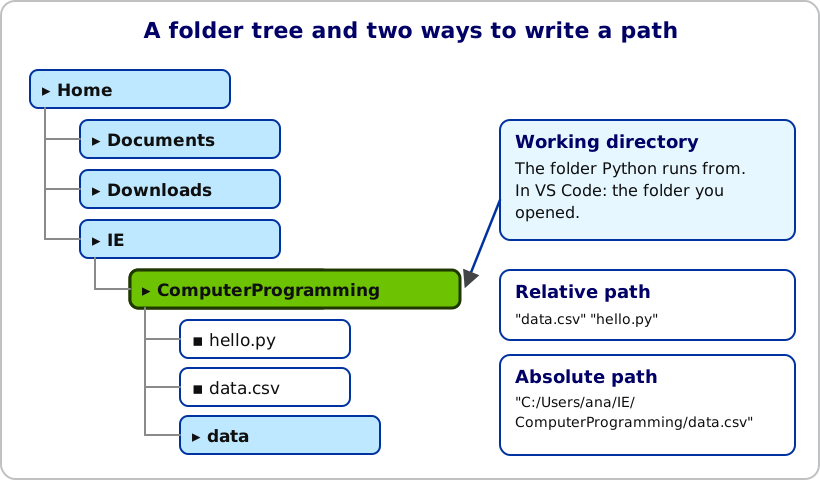
When you run Python, it has a working directory: the folder it is running from. If you give Python a relative path such as "data.csv", it looks for the file in that folder. You can check it:
import os

print(os.getcwd())
In VS Code, the working directory is normally the folder that you opened with File > Open Folder…. The easiest way to avoid errors is to put the files you need inside that folder.
| Type of path | Example | Meaning |
|---|---|---|
| Relative | data.csv |
A file in the working directory |
| Relative | data/weather.json |
A file in the subfolder data |
| Absolute | C:/Users/maria/data.csv |
The full path from the root of the drive |
If you see FileNotFoundError, the file is not where Python is looking. Check the working directory and the spelling of the file name.
Reading and writing files with NumPy
You already know how to load numeric tables with NumPy (see Loading and Saving Data). The file must be in the working directory:
import numpy as np

# Read a CSV file into an array
data = np.loadtxt("data.csv", delimiter=",")

# Write an array to a CSV file
array = np.array([[1, 2, 3], [4, 5, 6]])
np.savetxt("array.csv", array, delimiter=",")
NumPy is perfect for tables of numbers. But how do we store other kinds of data, such as a dictionary? For that we need plain files and the open() function.
Text files with open()
open(path, mode) opens a file. The mode says what we want to do:
| Mode | Meaning |
|---|---|
"r" |
Read (the default). The file must exist. |
"w" |
Write. Creates the file, or erases it if it exists. |
"a" |
Append. Adds text at the end of the file. |
Always use open inside a with block. It closes the file for you, even if there is an error:
# Write a text file
with open("notes.txt", "w") as file:
    file.write("First line\n")
    file.write("Second line\n")

# Read the whole file as one string
with open("notes.txt", "r") as file:
    content = file.read()
print(content)

# Read it line by line
with open("notes.txt", "r") as file:
    for line in file:
        print(line.strip())
\n is the character that marks the end of a line, and strip() removes it (and spaces) from the ends of a string.
JSON files
JSON (JavaScript Object Notation) is a text format to store data structures. It looks very much like Python dictionaries and lists, and it is used everywhere: web services, configuration files, datasets.
{
  "employees": [
    {"name": "Alice", "age": 30},
    {"name": "Bob", "age": 25}
  ]
}
Python’s standard library has a module for it: json.
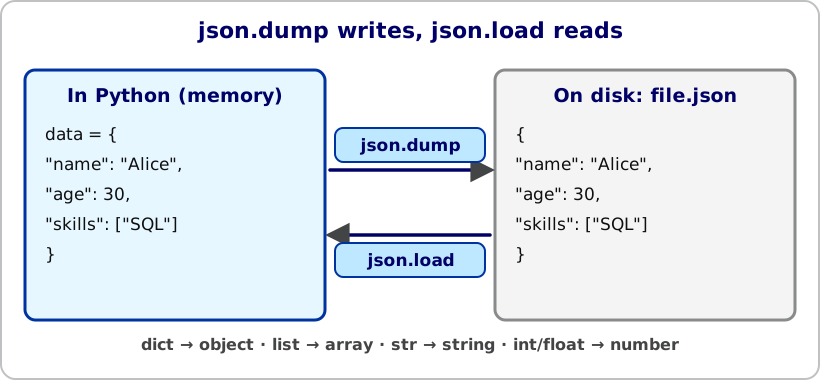
| Python | JSON |
|---|---|
dict |
object {...} |
list, tuple |
array [...] |
str |
string |
int, float |
number |
True, False, None |
true, false, null |
Reading JSON
import json

with open("file.json", "r") as file:
    data = json.load(file)

print(data)
json.load reads the file and returns the data as Python dictionaries and lists. The "r" means “read”.
Writing JSON
import json

data = {"key": "value", "numbers": [1, 2, 3]}

with open("file.json", "w") as file:
    json.dump(data, file, indent=2)
json.dump writes the data to the file. The "w" means “write”, and indent=2 makes the file easy to read.
"w"
Opening an existing file in "w" mode deletes its previous content. To avoid losing data, write the result to a new file name, as in the next exercise.
Practice
- Create a file
employees.jsonwith the content shown above. - Write a script
json_manager.pythat:- reads
employees.jsonand loads it into a Python dictionary, - adds a new employee to the
"employees"list, - writes the updated data to
employees_updated.json.
- reads
- Run the script and open the new file to check that the new employee is there.
import json


def main():
    with open("employees.json", "r") as file:
        data = json.load(file)

    data["employees"].append({"name": "Carla", "age": 28})

    with open("employees_updated.json", "w") as file:
        json.dump(data, file, indent=2)


if __name__ == "__main__":
main()Create a file weather.json like this one (you can add more days):
{
  "city": "Madrid",
  "days": [
    {"date": "2026-11-02", "temperature": 14.5, "humidity": 62},
    {"date": "2026-11-03", "temperature": 17.0, "humidity": 55},
    {"date": "2026-11-04", "temperature": 21.3, "humidity": 48},
    {"date": "2026-11-05", "temperature": 22.8, "humidity": 40},
    {"date": "2026-11-06", "temperature": 12.1, "humidity": 71}
  ]
}
Write a script weather_analysis.py that:
- Reads
weather.jsonand loads the temperatures and humidities into NumPy arrays. - Computes the average, maximum and minimum temperature, and the average humidity.
- Finds the days with a temperature above a threshold (for example 20 °C).
- Stores these statistics in a dictionary and writes them to
weather_statistics.json.
import json

import numpy as np

THRESHOLD = 20


def main():
    with open("weather.json", "r") as file:
        data = json.load(file)

    dates = [day["date"] for day in data["days"]]
    temperature = np.array([day["temperature"] for day in data["days"]])
    humidity = np.array([day["humidity"] for day in data["days"]])

    hot_days = [dates[i] for i in np.where(temperature > THRESHOLD)[0]]

    statistics = {
        "average_temperature": float(np.mean(temperature)),
        "max_temperature": float(np.max(temperature)),
        "min_temperature": float(np.min(temperature)),
        "average_humidity": float(np.mean(humidity)),
        "days_above_threshold": hot_days,
    }

    with open("weather_statistics.json", "w") as file:
        json.dump(statistics, file, indent=2)


if __name__ == "__main__":
    main()
We convert the NumPy numbers with float(...) because json cannot write NumPy number types directly. With the data above, the average temperature is 17.54 and the days above 20 °C are 2026-11-04 and 2026-11-05.
Need Help?
If you have any questions, feel free to reach out via email at dprecioso@faculty.ie.edu