A library is a collection of ready-made modules and functions that you can use in your own programs. You have already used one: numpy. Libraries save time, because you do not have to write (and test) everything yourself.
Kind
Where it comes from
Examples
Standard library
Installed together with Python
random, math, json, os
Third-party library
Downloaded and installed by you
numpy, pandas, matplotlib, typer
There are libraries for almost everything: numerical computing (NumPy), data analysis (pandas), plots (matplotlib), web development (Django, Flask) or machine learning (TensorFlow, PyTorch).
A library is a shelf of ready-made books that you can borrow instead of writing them yourself. Photo: Andy Li, CC0, via Wikimedia Commons.
Libraries come from Python itself or from the internet.
Importing a library
To use a library you must import it first. These are the usual forms:
import math # use as math.sqrt(...)from math import sqrt, pi # use directly as sqrt(...)import numpy as np # use a short alias: np.array(...)print(math.sqrt(16))print(sqrt(16), pi)print(np.array([1, 2, 3]))
4.0
4.0 3.141592653589793
[1 2 3]
TipGood practice
Put all your import lines at the top of the file. Use the standard aliases that everyone knows (np for NumPy), so other people can read your code easily.
If you import a library that is not installed, Python raises an error:
import typer# ModuleNotFoundError: No module named 'typer'
That means we must install it first.
Installing libraries with pip
pip is Python’s package installer. It downloads libraries from the Python Package Index (PyPI) and installs them. You run it in a terminal (in VS Code: Terminal > New Terminal):
pip install numpy
Other useful commands:
pip list # show installed librariespip install numpy==2.3.0 # install a specific versionpip uninstall numpy # remove a library
Warning“externally-managed-environment”
On some Linux and macOS systems, pip install fails with the message error: externally-managed-environment. It means you are trying to install into the Python that belongs to the operating system, which is protected. Do not force it. Activate a conda environment first (see Environments) and install there.
NotePip in a notebook
In a notebook (Colab or VS Code) you can run terminal commands from a cell by writing ! or % in front, for example %pip install numpy. In VS Code, we prefer to install libraries from the terminal, with the right environment active (see Environments).
Installing libraries with conda
conda is the package and environment manager that comes with Anaconda. It installs libraries too:
conda install numpy
pip or conda?
pip
conda
Installs
Python packages
Packages in any language, including Python itself
Source
PyPI
Anaconda channels (and conda-forge)
Environments
Needs another tool (venv)
Built in
Typical use
Pure Python libraries
Data science libraries with non-Python dependencies
A simple rule for this course: try conda install first. If the package is not found, use pip installinside the same conda environment.
Practice
Try these exercises in a notebook or a script in VS Code. Remember to read the error messages: they tell you what is wrong.
Open a terminal in VS Code and install matplotlib with conda install matplotlib (or pip install matplotlib).
In a notebook, run import matplotlib.pyplot as plt and check that no error appears.
Run pip list (or conda list) and find the version of NumPy you have installed.
TipSolution
In the VS Code terminal (with your environment active):
conda install matplotlib
Type y when conda asks to proceed. If conda cannot find the package, use pip install matplotlib instead.
In a notebook cell:
import matplotlib.pyplot as pltprint(plt.matplotlib.__version__)
If it prints a version number and there is no error, the library is installed in the environment that the notebook uses. If you see ModuleNotFoundError, you installed it in a different environment: check the kernel at the top right of the notebook.
In the terminal, conda list numpy or pip list shows a line such as numpy 2.x.x. You can also check it from Python:
---title: "Libraries, pip and conda"subtitle: "Module 4: IDEs & Tools"format: html---## What is a library?A **library** is a collection of ready-made modules and functions that you can use in your own programs. You have already used one: `numpy`. Libraries save time, because you do not have to write (and test) everything yourself.| Kind | Where it comes from | Examples ||---|---|---|| **Standard library** | Installed together with Python |`random`, `math`, `json`, `os`|| **Third-party library** | Downloaded and installed by you |`numpy`, `pandas`, `matplotlib`, `typer`|There are libraries for almost everything: numerical computing (NumPy), data analysis (pandas), plots (matplotlib), web development (Django, Flask) or machine learning (TensorFlow, PyTorch).{fig-alt="Wooden bookshelves full of books in a public library." width="60%" fig-align="center"}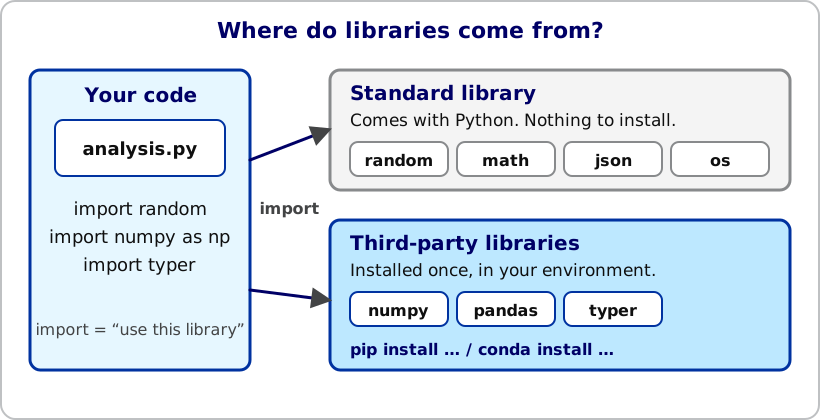{fig-alt="Diagram: a script called analysis.py imports libraries. The standard library comes with Python. Third-party libraries such as numpy, pandas and typer are installed with pip install or conda install." width="90%" fig-align="center"}## Importing a libraryTo use a library you must **import** it first. These are the usual forms:```{python}import math # use as math.sqrt(...)from math import sqrt, pi # use directly as sqrt(...)import numpy as np # use a short alias: np.array(...)print(math.sqrt(16))print(sqrt(16), pi)print(np.array([1, 2, 3]))```::: {.callout-tip}## Good practicePut all your `import` lines at the top of the file. Use the standard aliases that everyone knows (`np` for NumPy), so other people can read your code easily.:::If you import a library that is not installed, Python raises an error:```pythonimport typer# ModuleNotFoundError: No module named 'typer'```That means we must install it first.## Installing libraries with pip**pip** is Python's package installer. It downloads libraries from the *Python Package Index* (PyPI) and installs them. You run it in a **terminal** (in VS Code: **Terminal** > **New Terminal**):```bashpip install numpy```Other useful commands:```bashpip list # show installed librariespip install numpy==2.3.0 # install a specific versionpip uninstall numpy # remove a library```::: {.callout-warning}## "externally-managed-environment"On some Linux and macOS systems, `pip install` fails with the message `error: externally-managed-environment`. It means you are trying to install into the Python that belongs to the operating system, which is protected. **Do not force it.** Activate a conda environment first (see [Environments](environments.qmd)) and install there.:::::: {.callout-note}## Pip in a notebookIn a notebook (Colab or VS Code) you can run terminal commands from a cell by writing `!` or `%` in front, for example `%pip install numpy`. In VS Code, we prefer to install libraries from the terminal, with the right environment active (see [Environments](environments.qmd)).:::## Installing libraries with conda**conda** is the package and environment manager that comes with Anaconda. It installs libraries too:```bashconda install numpy```### pip or conda?|| pip | conda ||---|---|---|| Installs | Python packages | Packages in any language, including Python itself || Source | PyPI | Anaconda channels (and conda-forge) || Environments | Needs another tool (`venv`) | Built in || Typical use | Pure Python libraries | Data science libraries with non-Python dependencies |A simple rule for this course: **try `conda install` first**. If the package is not found, use `pip install` *inside the same conda environment*.## PracticeTry these exercises in a notebook or a script in VS Code. Remember to read the error messages: they tell you what is wrong.- [Card Dealer](review_general.qmd#ex-card-dealer): uses `random` and `numpy`.- [Log-Sum-Exp Function](review_general.qmd#ex-log-sum-exp): uses NumPy functions.- [NumPy Difference](review_general.qmd#ex-numpy-difference): uses `np.diff` and `np.concatenate`.- [Remove Duplicates](review_general.qmd#ex-remove-duplicates) and [Invert Dictionary](review_general.qmd#ex-invert-dictionary): warm-up exercises with strings and dictionaries.::: {.callout-note}## Exercise1. Open a terminal in VS Code and install `matplotlib` with `conda install matplotlib` (or `pip install matplotlib`).2. In a notebook, run `import matplotlib.pyplot as plt` and check that no error appears.3. Run `pip list` (or `conda list`) and find the version of NumPy you have installed.:::::: {.callout-tip collapse="true"}## Solution1. In the VS Code terminal (with your environment active):```bashconda install matplotlib```Type `y` when conda asks to proceed. If conda cannot find the package, use `pip install matplotlib` instead.2. In a notebook cell:```pythonimport matplotlib.pyplot as pltprint(plt.matplotlib.__version__)```If it prints a version number and there is no error, the library is installed in the environment that the notebook uses. If you see `ModuleNotFoundError`, you installed it in a different environment: check the kernel at the top right of the notebook.3. In the terminal, `conda list numpy` or `pip list` shows a line such as `numpy 2.x.x`. You can also check it from Python:```pythonimport numpy as npprint(np.__version__)```:::---# Need Help?If you have any questions, feel free to reach out via email at [dprecioso@faculty.ie.edu](mailto:dprecioso@faculty.ie.edu)[Next: Writing and running scripts](scripts.qmd){.btn .btn-primary}

